How to migrate off of Try Keep safely for Canadian teams
How to migrate off of Try Keep with a phased checklist for accounts, cards, payments, and exports so Canadian businesses protect continuity and records

Trusted by 15,000+ Canadian businesses
Business banking for Canada
Local CAD and USD accounts, corporate cards with cashback, the lowest FX rates in Canada, free local transfers, and more.
Start With Business Continuity
If your finance setup touches cards, business accounts, payments, bookkeeping, or employee spending, treat this move as an operating change—not a quick product swap. For Canadian founders, finance managers, controllers, and operations leads, the safest path away from Keep starts with mapping what could break.
You may have card spend, AutoPay dependencies, multi-currency balances, exported statements, receipts, and QuickBooks workflows all connected to your current setup. A practical migration guide should help you choose a replacement model, preserve records, move payments in the right order, and reduce disruption. Work through a step-by-step business account migration checklist so each dependency gets handled before you fully move off Keep.
Why Teams Reevaluate Keep
Reassessing Keep is often a practical operating decision rather than a reaction to a single issue. Some teams need a fuller operating account for payroll, vendor payments, or cash segmentation. Others want different approval controls, a branch-backed banking relationship, or clearer separation between day-to-day banking and spend management. Payment rails can also matter, especially when payables, collections, or recurring withdrawals become more complex.
A few platform-specific details deserve early review. Keep Banking supports multiple currencies, but Keep Banking accounts do not support PAD transactions. Its QuickBooks integration supports QuickBooks Online only, with one-way sync from Keep to QuickBooks. Non-CAD Keep card purchases carry a 3% foreign currency conversion fee, while 0% FX language applies to Keep Banking transfers. Canceling a Keep subscription stops renewal, but it does not automatically close the account.
Decide What You Are Replacing
Before you compare destinations, define the scope of what you are replacing. Some teams need a card program only—employee cards, virtual cards, spend limits, and recurring software subscriptions. Others need a business account setup only, covering linked accounts, AutoPay funding, vendor payouts, and customer payment instructions. The most complex moves replace a combined workflow where cards, payments, bookkeeping, statements, receipts, and audit records all connect.
Start by creating a dependency map. List every account, cardholder, subscription, vendor, customer instruction, accounting sync, statement archive, receipt trail, and approval owner tied to your current setup. Then choose the migration model that fits: an all-in-one business banking platform, a traditional bank account plus separate finance software, or your existing bank relationship plus a spend-management layer.
Pre-Migration Checklist
Before you cancel, downgrade, or cut over, preserve the records your finance team will need for bookkeeping, tax support, and audit trails.
Export and archive your records
- Download monthly statements for each currency account you used.
- Export transaction history in CSV format for reconciliation.
- Export QuickBooks CSV files if your accountant needs them for a QuickBooks migration.
- Save receipts, attachments, and memo records tied to card spend.
- Archive your cardholder list, including former and current users.
- Capture your active card list, including physical cards, virtual cards, and recurring-use cards.
Keep allows statement downloads by currency account and supports transaction exports in CSV or QuickBooks CSV format, with each export covering up to one year at a time. If your history runs longer, export it in separate date ranges.
Audit anything still in motion
- Check unpaid card balances and expected settlement timing.
- Confirm any financing or capital obligations, if applicable.
- Review pending refunds, disputes, or chargebacks.
- Identify upcoming renewals tied to Keep cards.
- Map payroll or contractor payout dates so you do not switch during a critical payment cycle.
Choose a low-risk cutover window. Avoid month-end close, payroll week, and major customer billing runs—especially if you are coordinating a broader migration across multiple systems.
Replacement Path Comparison
Start with the operating model you want after the switch. Some teams want to consolidate business account activity and card workflows into one place. Others prefer a traditional bank account, then add separate tools only where needed.
Venn
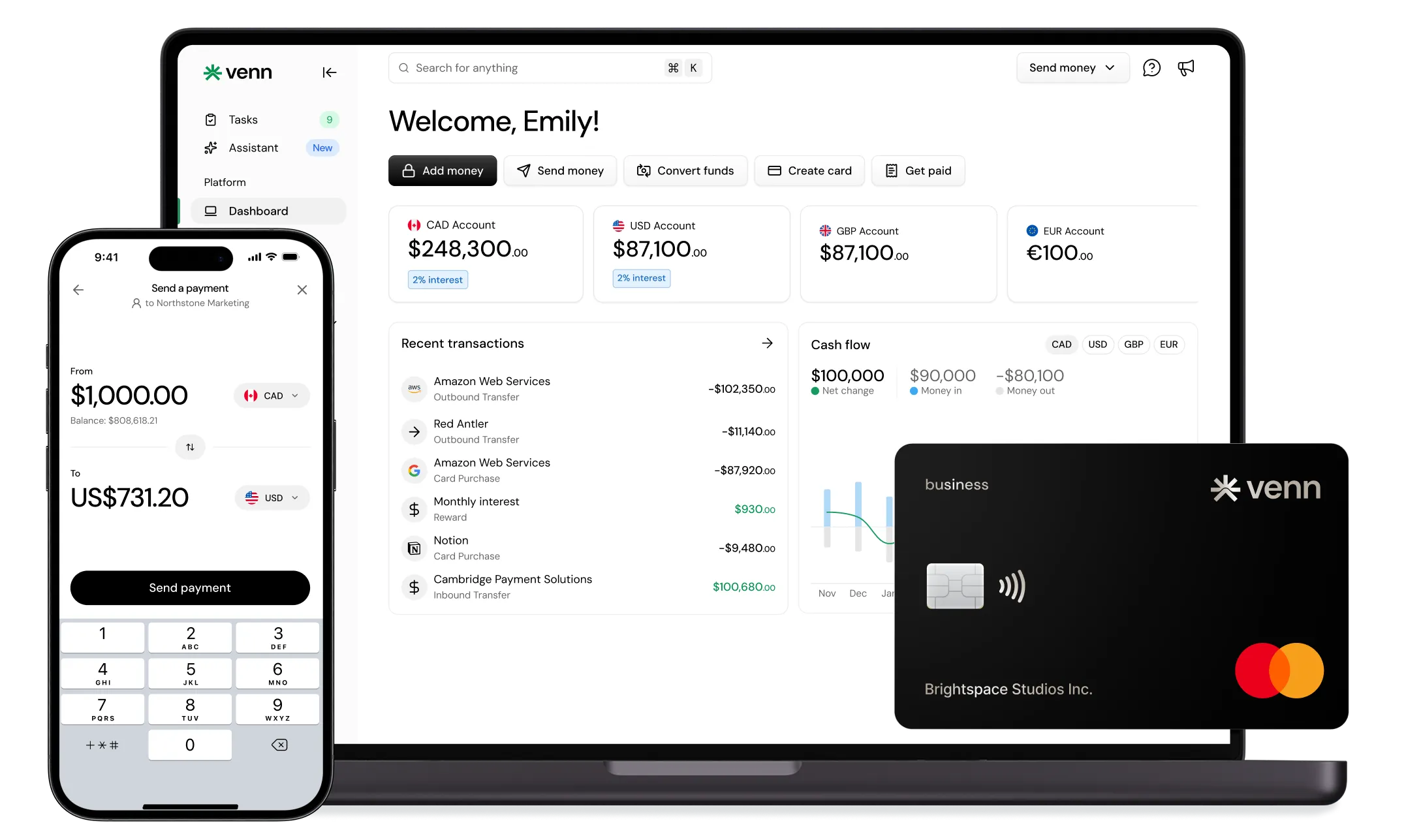
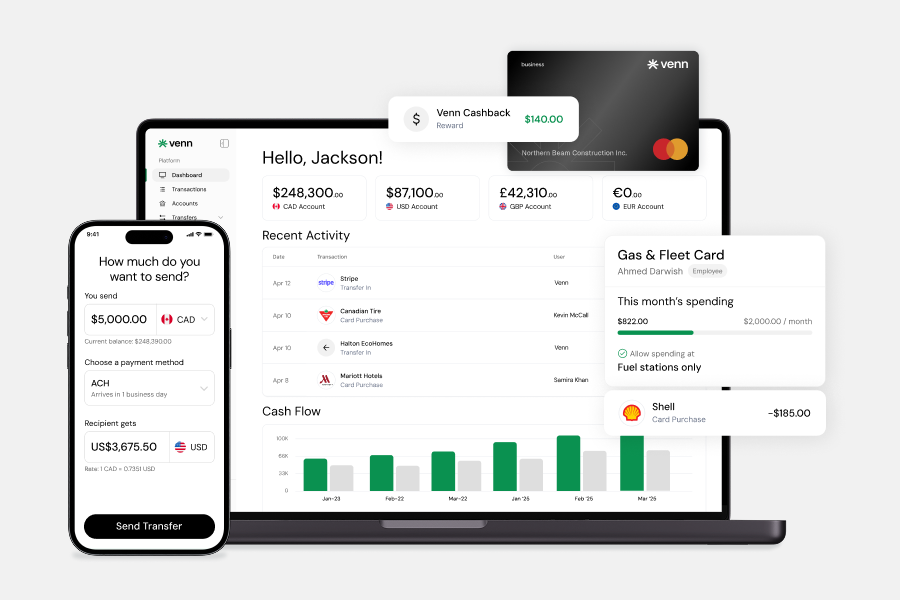
If your team wants fewer separate tools after the cutover, Venn is worth a close look. It is a Canadian business banking platform and technology company—not a bank—built for companies that want business accounts and team cards in one operating workflow.
For businesses with cross-border revenue or vendors, Venn supports CAD, USD, GBP, and EUR accounts with competitive FX rates, which can matter when your migration involves frequent currency conversion or international payments. For card spend, Venn offers a corporate charge card with 1% cashback.
Where Venn tends to fit best is in the finance workflow around the account. Teams can manage expenses with OCR receipt capture and connect activity directly to QuickBooks or Xero. Vendor payments can run through free unlimited Interac e-Transfer® transactions, and eligible funds receive CDIC insurance protection up to applicable limits. Venn is not available in Quebec.
RBC Digital Choice Business Account
If your team wants to move into a familiar large-bank environment, RBC Digital Choice Business Account is the traditional bank path to consider. RBC markets the account at $6 per month and positions it for businesses that handle most day-to-day banking electronically rather than through frequent in-branch transactions.
For eligible businesses, the application can start online, which can help keep your migration timeline moving while you work through payment updates and accounting cutover tasks. That said, some applicants may still need to complete identity verification at a branch—build that possibility into your switching plan before you change vendor instructions or recurring payments.
This route suits founders and finance teams that prioritize a recognizable, branch-backed banking relationship over integrated expense workflows or accounting-adjacent tooling. Think of it as a digital-first business account inside a major Canadian bank, not a full finance operations platform.
BMO Essential Business Account
If your team mostly handles payments online but still wants a major Canadian bank relationship, the BMO Essential Business Account can fit a narrower migration need. BMO positions it as a $5 per month low-fee digital business chequing account—relevant when you want a traditional account rather than a broader finance platform.
The main appeal for online-first operators is predictable day-to-day usage. The account includes unlimited electronic and ATM transactions, so routine digital banking activity stays simple as you move over from your old setup. It also includes six Interac e-Transfer® transactions per month, which may work for teams with light transfer volume.
One thing to watch: in-branch activity can carry extra costs, and this path should not be treated as a replacement for deeper spend management or accounting workflow software.
Ramp
If your main reason to switch from Keep is spend governance, Ramp fits a narrower migration goal. In Canada, Ramp markets cards, expense workflows, and bill payments—making it more of a spend-management overlay than a full operating account replacement.
That distinction matters during cutover planning. A company that wants to keep its existing bank relationship may not need to move its primary business account at all. Instead, the project becomes a controlled replacement of card controls, approval flows, receipt capture habits, and bill pay processes. Ramp supports CAD and USD cards, so it can suit teams with cross-border spend needs. For a Canadian business account migration, treat Ramp as the "keep the bank, replace the spend stack" path.
Step-By-Step Migration Plan
- Open and verify the new platform before changing anything. Do not cancel Keep or move critical payments first. Complete identity verification, confirm the application approval, and make sure the funding method works. Add at least two administrators where possible so one person does not become a bottleneck. If your migration depends on a bookkeeper, controller, or external accountant, invite them early and confirm their access level before the first transaction.
- Rebuild your core finance controls. Map your old approval flow into the new setup. Add admins, approvers, bookkeepers, employees, and any department leads who manage spend. Recreate card rules, spend limits, approval policies, and receipt requirements. Connect accounting before live activity starts, then run a small test transaction so your team can confirm the data lands in the right place.
- Move cash in phases. Keep a buffer in Keep during the overlap period. Move a portion of operating funds first, then test incoming and outgoing payments. Once those clear as expected, transfer secondary balances. Build a cash buffer around payroll, tax payments, rent, and large vendor invoices so the switch does not create timing pressure.
- Replace cards and recurring spend. Issue new employee cards before disabling old ones. Update virtual card details with merchants that bill automatically—software subscriptions, ad platforms, travel tools, telecom accounts, and recurring vendors. Ask employees to check saved card details in browsers and apps, since missed renewals often come from personal workflow habits rather than finance systems.
- Update payment instructions. Send new vendor instructions in writing and confirm receipt for critical suppliers. Update payroll or contractor systems, customer remittance instructions, marketplace payout destinations, and processor payout accounts. For high-value flows, run a test payment before the cutover date.
- Switch accounting and reconcile the overlap period. Choose a clean cutover date, ideally away from month-end close and payroll week. Document which platform owns each date range to prevent duplicate imports. Reconcile the final Keep period and the first new-platform period side by side, including card transactions, transfers, fees, refunds, and outstanding bills.
- Wind down Keep safely. Confirm there are no pending charges, unpaid balances, refunds, or chargebacks still in motion. Transfer any remaining balance out only after your final reconciliation is complete. Once the account shows no open obligations and your records match, cancel or reduce the old setup according to your internal migration checklist.
Post-Migration Checklist
For the first 30 days after cutover, treat the move off Keep as an active control period—not a finished project.
- Update bookkeeping SOPs: Document the new transaction review process, receipt rules, coding conventions, and accounting sync owner.
- Revise month-end close checklists: Add the final Keep reconciliation, the first new-platform reconciliation, and a duplicate-entry review.
- Refresh employee policies: Update reimbursement steps, card request forms, approval limits, lost-card procedures, and escalation contacts.
- Edit vendor onboarding templates: Replace payment instructions, required banking details, tax form routing, and remittance contact fields.
- Update customer-facing documents: Change invoice footers, remittance instructions, and any Interac e-Transfer® payment notes.
- Clean saved recipients: Rebuild beneficiary lists from verified records, not old exports alone.
- Monitor exceptions: Watch for missed card retries, returned payments, old cards attached to subscriptions, foreign currency settlement differences, and duplicate accounting entries during the overlap period.
Common Migration Mistakes To Avoid
Canceling too early. Keep the old setup active until the replacement has been opened, tested, and reconciled. As noted earlier, canceling a subscription does not immediately close the account, but it can affect what your team can do after the active term ends. Treat cancellation as a final wind-down step, not the starting point.
Skipping statement and receipt exports. Finance teams often focus on moving cards and payments, then discover missing audit support during month-end close. Use the pre-migration checklist above to confirm your statements, transaction records, receipts, and accounting backup are archived before usage winds down.
Overlooking AutoPay and linked accounts. Document every linked account, AutoPay dependency, and payment source tied to your current setup before changing platforms. A missed dependency can create failed payments, duplicate funding attempts, or confusion during reconciliation.
Combining two separate projects. Spend migration and business account migration require different owners, timelines, and controls. If your team only needs to replace card spend workflows, avoid rebuilding the full operating account process unnecessarily. If you are moving the business account too, plan a separate cutover for payment instructions, vendor records, and bookkeeping.
Suggested Migration Timelines
Set your timeline based on operational complexity rather than a fixed date.
For a solo founder or very small team, a simple setup may take 3 to 7 business days—assuming a low number of recurring merchants, few employee cards, and limited accounting dependencies.
For a small finance team, plan for 1 to 2 weeks. Card replacement, vendor updates, accounting cutover, and approval workflows usually need coordination across more than one person.
For multi-currency use or a more complex team, allow 2 to 4 weeks with phased testing and overlap. Timing depends on verification, recurring payment volume, employee card count, accounting complexity, vendor dependencies, and overall payment activity.
Choose the Path That Matches Your Workflow
Start with the workflow you need to protect first. If your main issue is account operations, compare business account options through a banking lens. If team spending is the pressure point, prioritize card controls and approvals. If close processes create the risk, focus on accounting workflows. Cross-border vendors or customers may make international payment needs the deciding factor.
For some teams, one path solves a narrow gap. For others, the right destination replaces account operations, card controls, accounting workflows, and international payment needs all at once. Compare your options, download the migration checklist, or see how Venn's business accounts and cards work as one option among several. Sign up for Venn
Frequently Asked Questions
Q: Do I need to cancel Keep before opening a replacement?
A: No. Open, verify, and test the replacement first, then maintain overlap time until payments, cards, and accounting workflows are running smoothly. This lowers the risk of failed charges, missed vendor payments, or gaps in bookkeeping.
Q: What should I export from Keep before switching?
A: Export statements, transaction CSVs, receipts, user and card lists, and accounting records. Refer back to the pre-migration checklist for the complete archive sequence. Store the files somewhere your finance team can access during tax filing, audits, and month-end review.
Q: Can I switch without disrupting employee spending?
A: Yes, if new cards and limits are set up first and recurring merchants are updated in a controlled order. Ask employees to confirm their key subscriptions and travel tools before you disable old cards. For higher-spend teams, run both systems briefly while you monitor failed payment alerts.
Q: What if I only want a different business account setup?
A: A traditional bank account path may fit better than a full software-led migration if spend management is not the main issue. In that case, focus your plan on payment instructions, payroll or contractor destinations, accounting cutover, and remaining balances. You can keep card and expense workflows separate if that matches your operating model.
Q: What if I only want better spend controls and want to keep my current bank relationship?
A: A spend-management overlay such as Ramp may be more relevant than replacing the full operating account setup. This route can make sense when the core issue is card controls, approvals, or expense visibility rather than the underlying account. Treat it as a narrower project than a full business account migration.
Q: How do I choose the right path when planning how to migrate off of Try Keep?
A: Start with the workflow you need to replace, not the platform name. If you want accounts, cards, and finance operations in one place, compare modern business banking platforms such as Venn alongside the other options outlined above. If you mainly want a branch-backed account or a spend layer, follow the relevant path instead of rebuilding your entire finance stack.
---
**Disclaimer:** This publication is provided for general information purposes only and does not constitute legal, tax, financial, or other professional advice from Venn Software Inc., its subsidiaries, or its affiliates, and is not a substitute for advice from a qualified professional. All comparisons and competitor information reflect publicly available information believed accurate as of October 27, 2026; features, pricing, rates, and terms referenced are subject to change and may differ at the time you read this. All product names, logos, and brands referenced are the property of their respective owners; their mention does not imply affiliation with or endorsement by Venn. Any comparative statements reflect Venn's views and are provided to help readers evaluate options. We make no representations, warranties, or guarantees, express or implied, that the content is accurate, complete, or up to date.

Venn is all-in-one business banking built for Canada
From free local CAD/USD accounts and team cards to the cheapest FX and global payments—Venn gives Canadian businesses everything they need to move money smarter. Join 15,000+ businesses today.
Frequently asked questions
Everything you need to know about the product and billing.
Join 15,000+ businesses banking with Venn today
Streamline your business banking and save on your spend and transfers today
No personal credit check or guarantee.