A Closer Look at Venn's Reporting Dashboard
A section-by-section walkthrough of everything you can see and do inside Reporting.

Ahmed Shafik
Co-founder
Trusted by 15,000+ Canadian businesses
Business banking for Canada
Local CAD and USD accounts, corporate cards with cashback, the lowest FX rates in Canada, free local transfers, and more.
We just launched our new reporting feature: a real-time financial dashboard built directly into your Venn account. Instead of exporting transactions into spreadsheets and building charts manually, you now get interactive dashboards that show you exactly how money moves through your business.
This post walks through each section of the dashboard in detail, what each element shows you, and how to interact with it.
How to Use Venn's Reporting Dashboard
To get started, log into your Venn account and click Reporting in the left navigation. The dashboard loads immediately with no setup required.
Cash Flow
The Cash Flow section covers how money moves through your business. It has three main components: the balance chart, the earnings and savings widget, and the cash flow chart. Each one is interactive and connected to your actual transaction data.

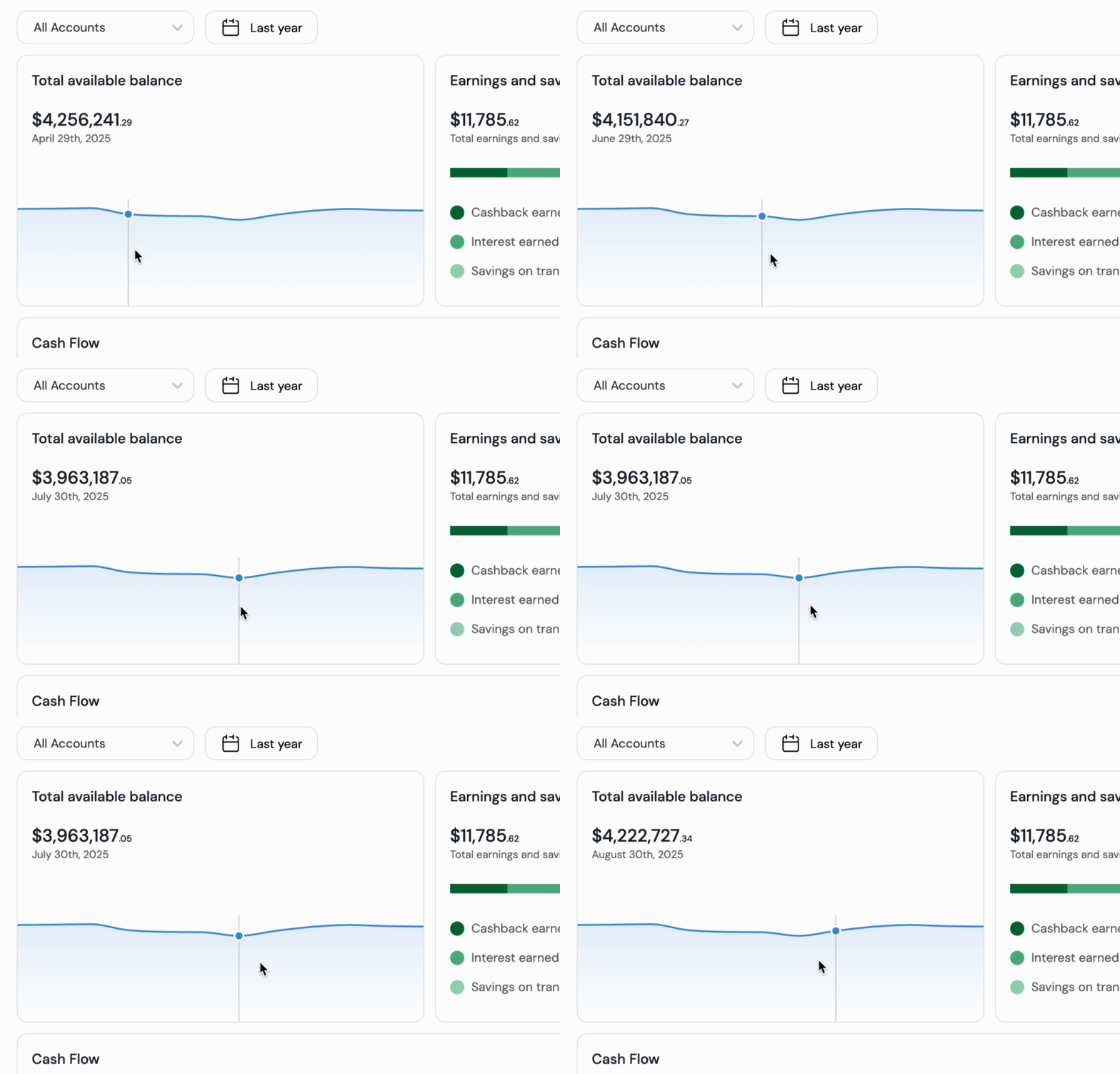
1. Your Total Available Balance
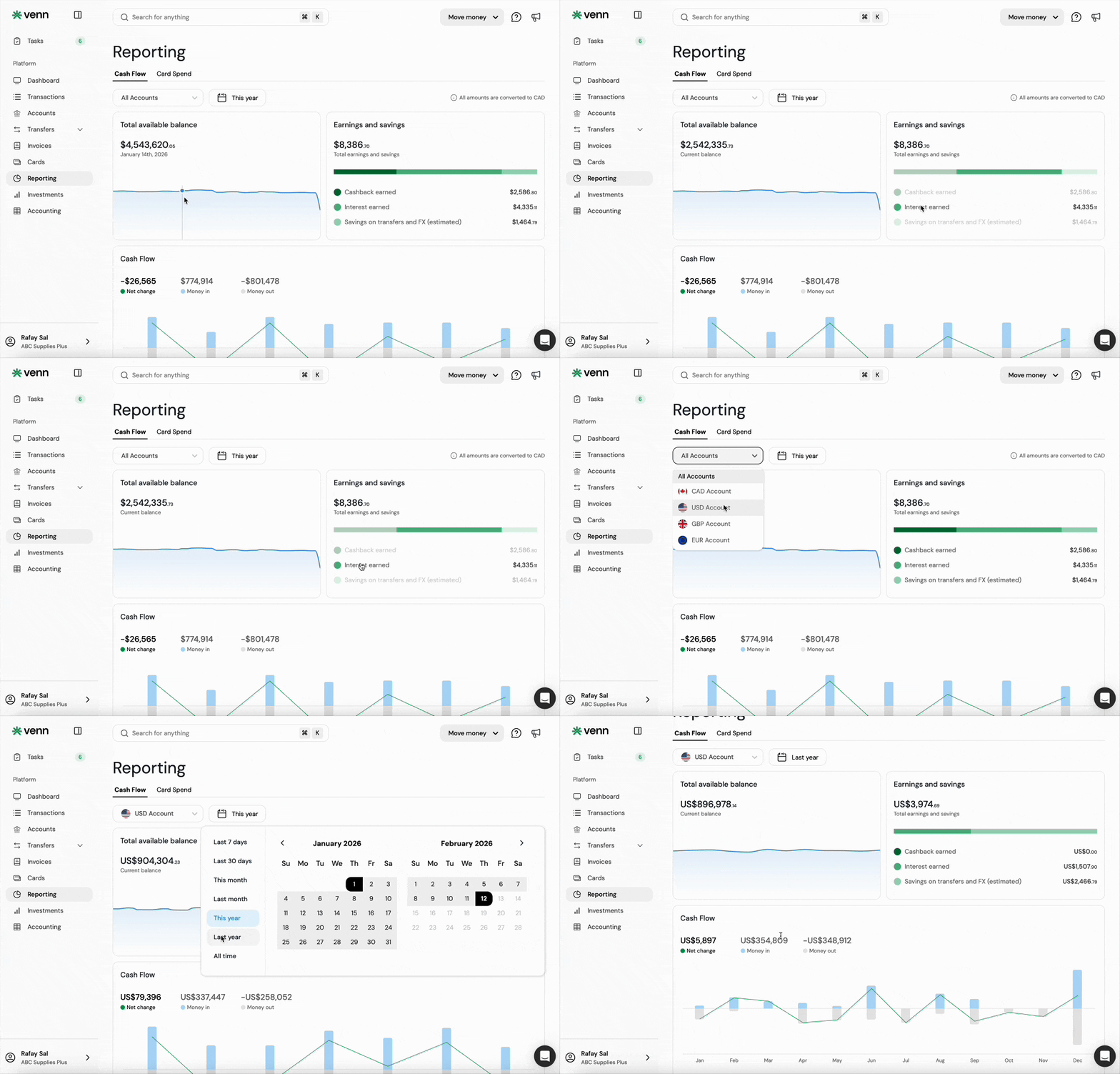
The first chart shows your total available balance across your accounts over time. Hover over any point on the chart and you see your exact balance at that moment. This is useful when you want to understand your liquidity position at a specific date or trace how your balance changed over a given period.
2. Earnings and Savings
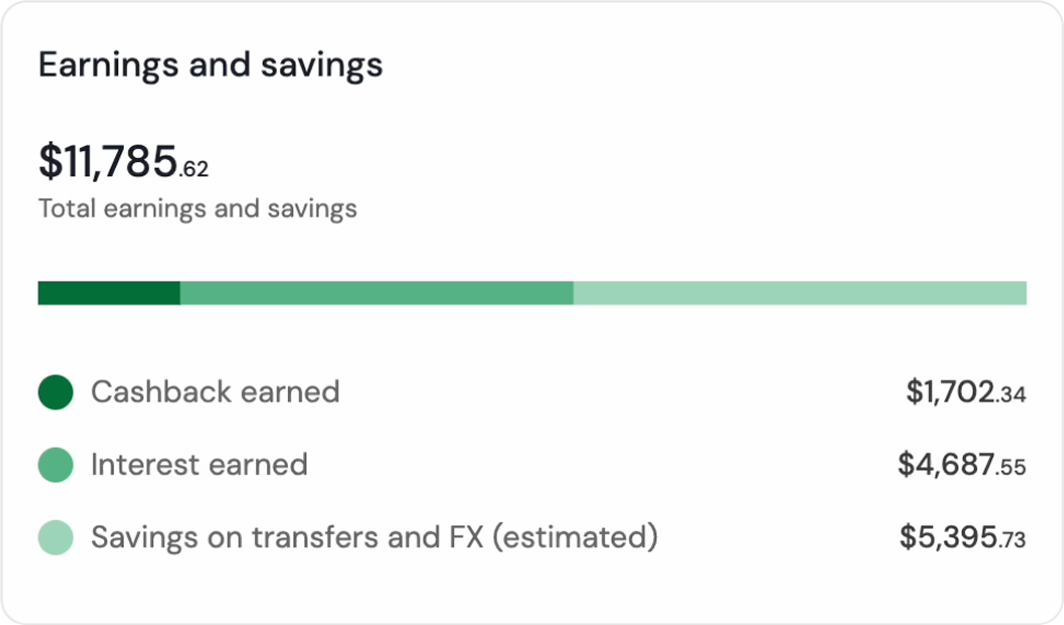
Directly next to the balance chart, you will find the earnings and savings widget. This shows how much Venn has generated for your business through cashback and interest earned, updated in real time.
You can click into any figure in this widget, including cashback or interest earned, to go straight to the transactions that made up that number. If you want to verify exactly which transactions contributed to your cashback total for a given month, the data is right there. There is no need to cross-reference a separate report.
3. Cash Flow Chart and Filters
Right below the balance chart and earnings widget, the cash flow chart shows money moving in and out of your accounts over time. This gives you a view of inflows versus outflows across all your global accounts.
The chart adjusts its level of detail automatically based on the date range you select. A short range shows daily data. A longer range moves to weekly, monthly, or quarterly views so the chart remains readable regardless of the time window you are looking at.
The filters at the top of the section control date range, currency, and account. When you apply a filter, the entire section updates in one click, including the balance chart, the earnings widget, and the cash flow chart.
A few examples of how this works in practice:
To review your USD accounts over the last year, select USD from the currency filter and choose "last year" from the date range. To focus on your CAD accounts for the current month, select CAD and "this month." For teams managing both CAD and USD accounts, this means you can examine each currency independently without exporting any data or building a separate view.
Card Spend
The Card Spend section shows how your team is spending on corporate cards. It covers a spend-over-time chart, three top-spend breakdowns, and two operational tracking tools.

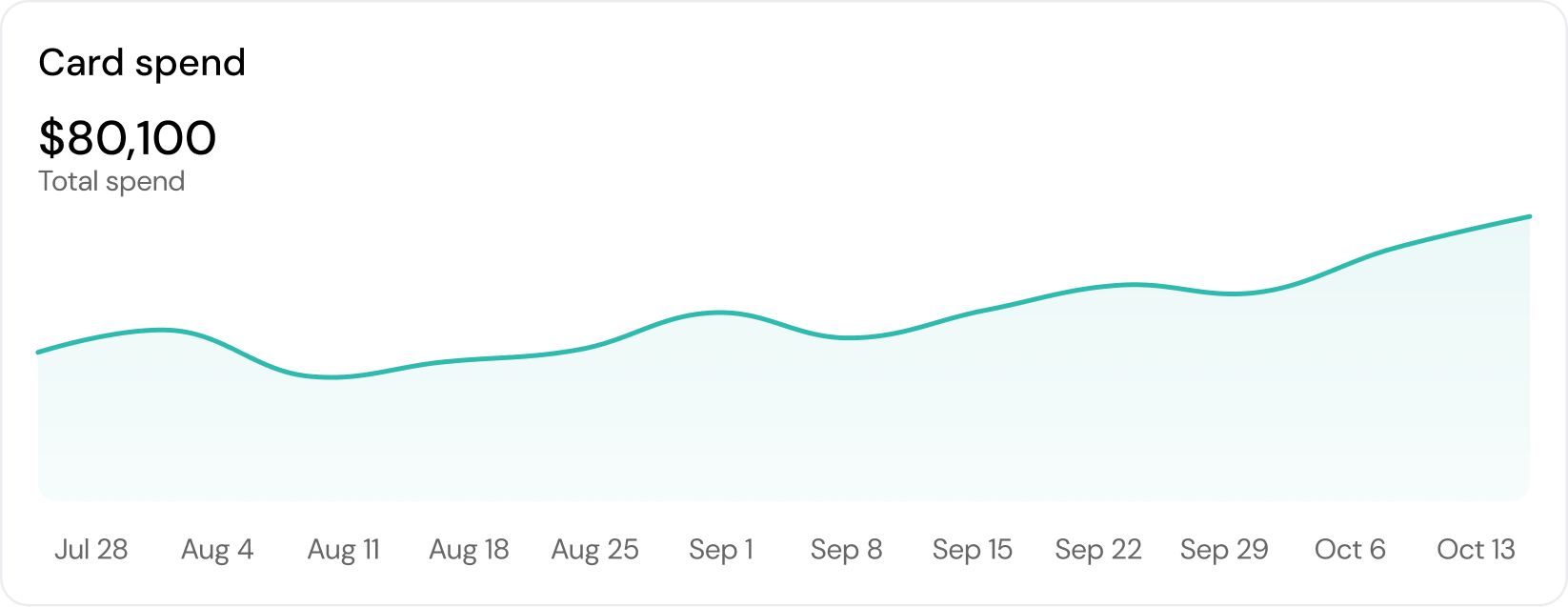
Spend Over Time
The first chart in this section shows total corporate card spend over time. Each data point represents spending for a specific period. Hover over any data point to see the spend amount for that window. Click into it, and the transactions table loads the purchases made during that exact time period.
This makes it easy to investigate a spike in spend or confirm that spending stayed within expectations for a given period.
Top Spend by Category
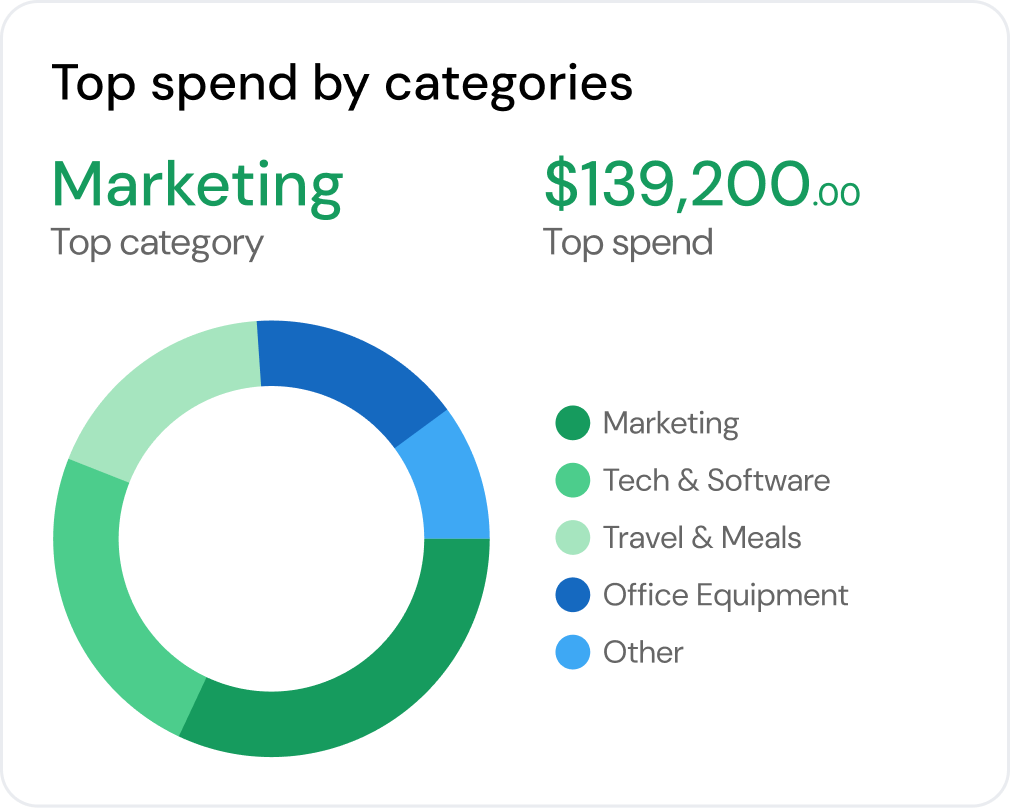
This widget shows your spending organized by merchant category. You can see at a glance where the largest portions of card spend are concentrated, whether that is software subscriptions, travel, meals, or another category. Click into any category and the transactions table filters to show every transaction that falls within it.
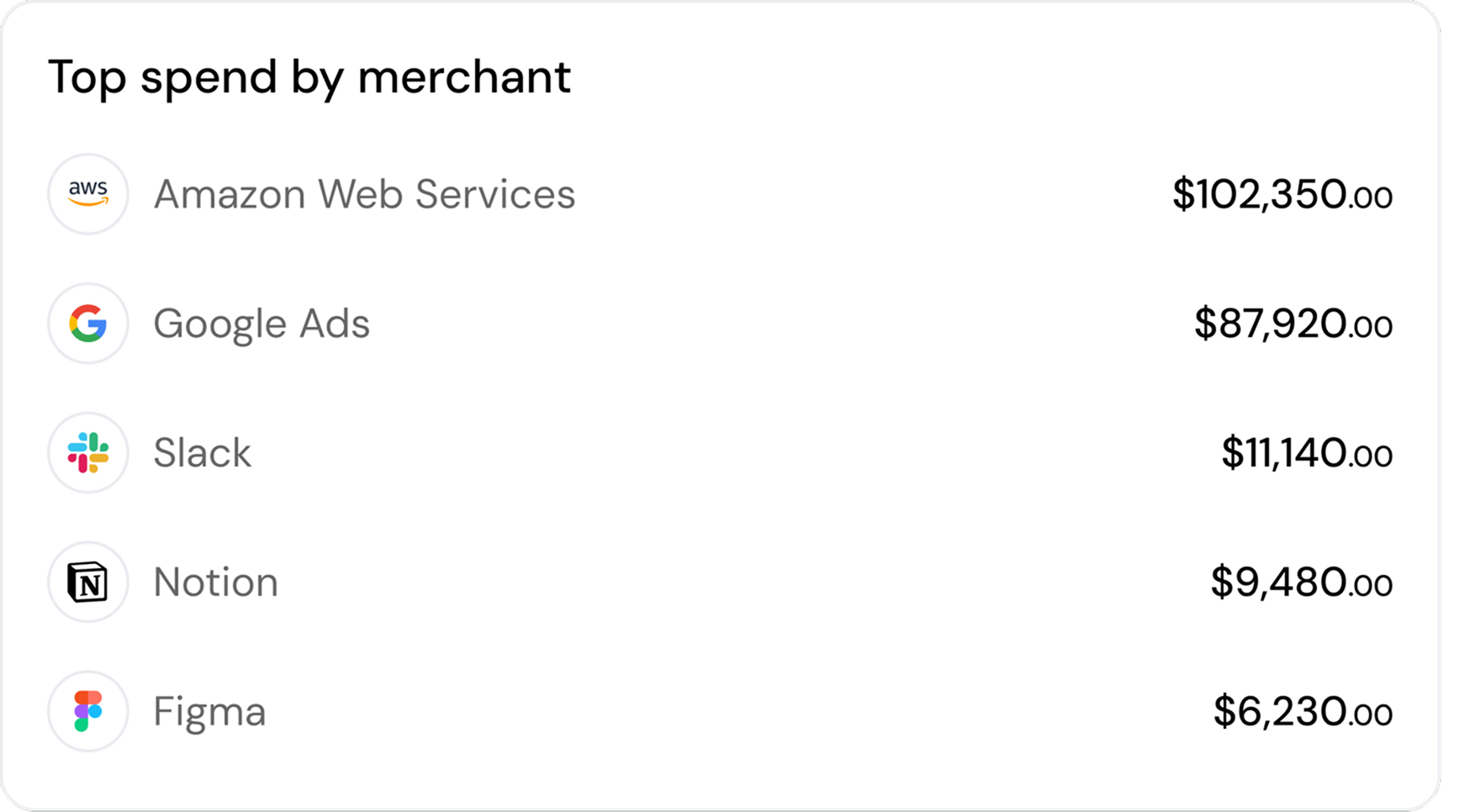
Top Spend by Merchant
This lists the vendors your team spends with most. Click into any merchant and you go directly to the transactions table filtered to that vendor, so you can see every purchase made there and by whom.
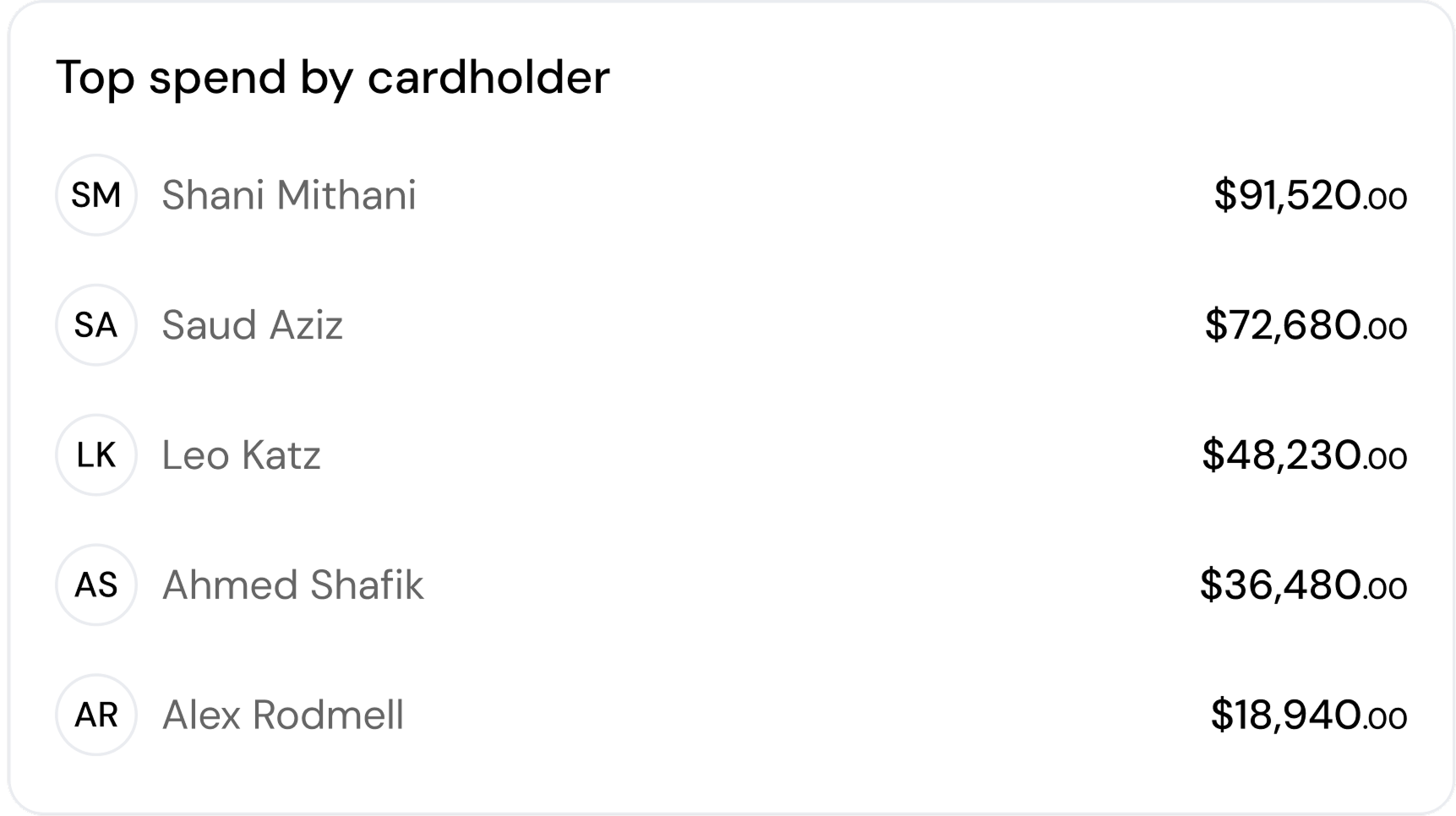
Top Spend by Cardholder
This shows which team members are driving the most card spend. Click into any cardholder and the transactions table loads their full transaction history. For finance teams reviewing card activity across a larger team, this breakdown makes it easy to go from a summary view to an individual cardholder's transactions in one click.
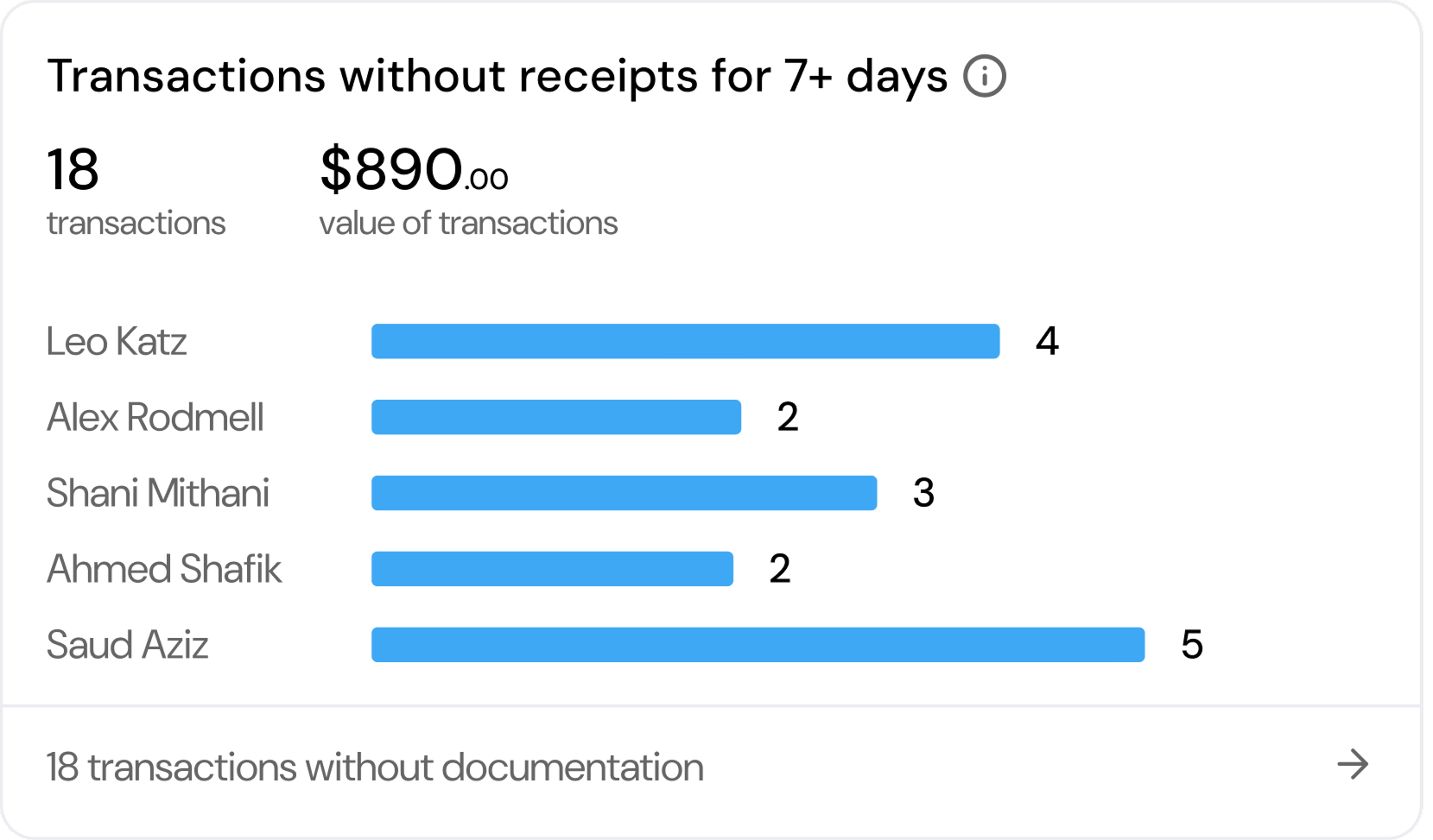
Missing Receipts and Memos
On the right side of the Card Spend section, you can track two operational items: missing receipts and missing memos. If a transaction has no receipt attached or no memo filled in, it appears in the relevant list. Click into either list and you see the specific transactions that need attention.
This removes the need to manually sort through your full transaction history to chase down documentation. You can see exactly what is outstanding and follow up with the right cardholders directly.
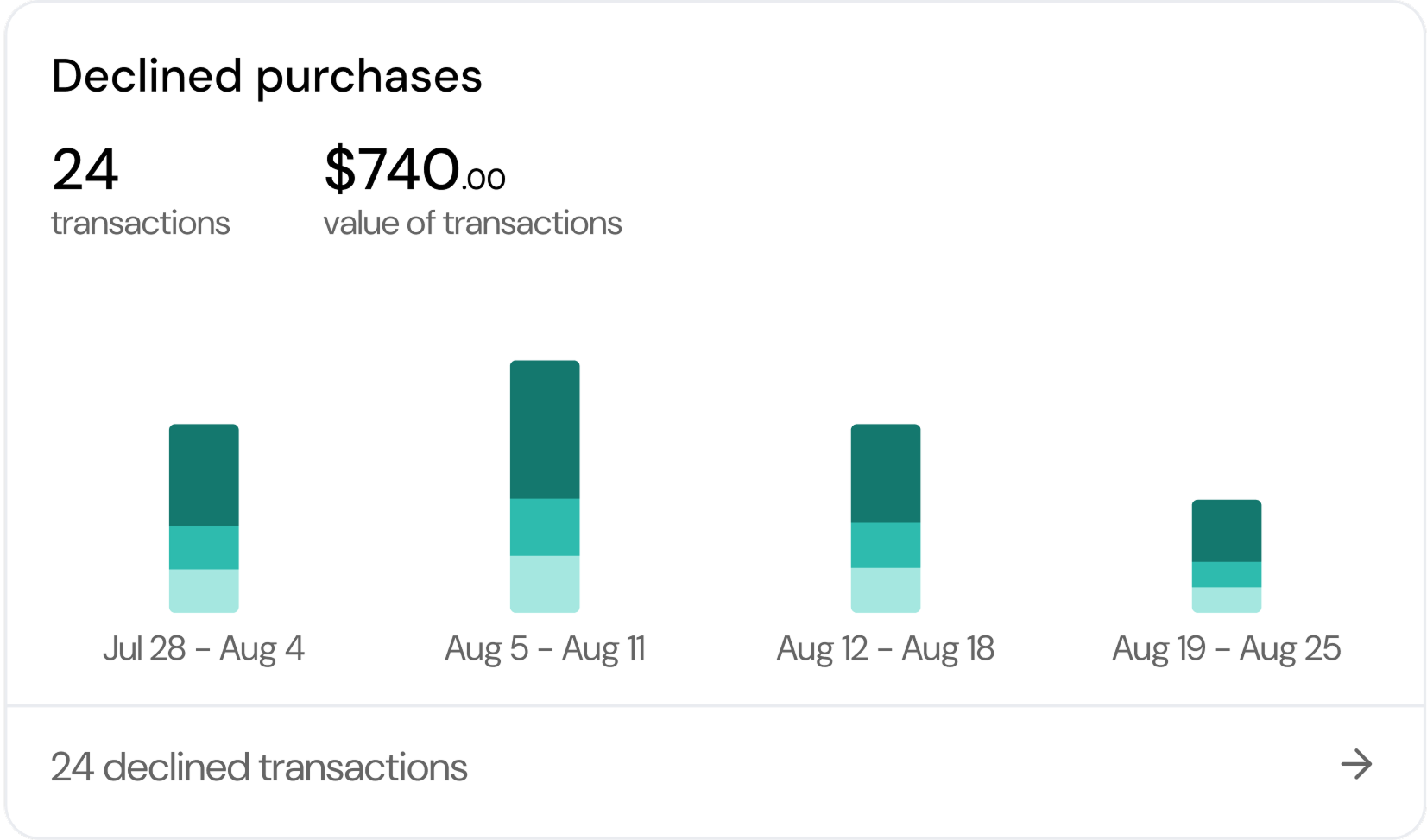
Declined Transactions
The last component in the Card Spend section is declined transactions. This shows every card transaction that was declined and tells you why it was declined, whether the reason was a spending limit, a restricted merchant category, or a card control you have set.
This is useful for two situations: when a cardholder reports their card was declined and you need to understand what happened, and when you want to audit whether your current card controls are functioning as intended or need adjustment.
How the Dashboard Connects
Every number in the reporting dashboard links back to your transactions table. Wherever you are in the dashboard, you can always move from a high-level figure to the exact transactions behind it without switching tools or leaving the platform. All data reflects your live Venn accounts and cards, with no manual refresh needed.
The reporting dashboard is now available to all Venn customers. Log into your account and click Reporting in the left navigation to get started.
If your business is not on Venn yet and you want to see how the reporting dashboard and the rest of the platform can help you, sign up today!
Frequently Asked Questions (FAQ)
Do I need Venn corporate cards to use the full dashboard?
The Cash Flow section works for all Venn customers regardless of whether you have corporate cards. The Card Spend section only populates if your team has and is using Venn corporate cards, since it reflects card transaction data specifically.
Where does the data in the dashboard come from?
Directly from your Venn accounts and cards. Because Venn already processes your transactions and manages your cards, all the data is already in the platform. There is no integration to set up and no external source to connect.
Does the data update automatically, or do I need to refresh?
It updates automatically. The dashboard reflects your live accounts and cards in real time, so whatever you see is current without needing to trigger a sync or reload the page.
This publication is provided for general information purposes and does not constitute legal, tax or other professional advice from Venn Software Inc or its subsidiaries and its affiliates, and it is not intended as a substitute for obtaining advice from a financial advisor or any other professional. We make no representations, warranties or guarantees, whether expressed or implied, that the content in the publication is accurate, complete or up to date.
This publication is provided for general information purposes only and does not constitute legal, tax, financial, or other professional advice from Venn Software Inc., its subsidiaries, or its affiliates, and is not a substitute for advice from a qualified professional. All comparisons and competitor information reflect publicly available information believed accurate as of February 25, 2026; features, pricing, rates, and terms referenced are subject to change and may differ at the time you read this. All product names, logos, and brands referenced are the property of their respective owners; their mention does not imply affiliation with or endorsement by Venn. Any comparative statements reflect Venn's views and are provided to help readers evaluate options. We make no representations, warranties, or guarantees, express or implied, that the content is accurate, complete, or up to date.

Venn is all-in-one business banking built for Canada
From free local CAD/USD accounts and team cards to the cheapest FX and global payments—Venn gives Canadian businesses everything they need to move money smarter. Join 15,000+ businesses today.
Frequently asked questions
Everything you need to know about the product and billing.
Join 15,000+ businesses banking with Venn today
Streamline your business banking and save on your spend and transfers today
No personal credit check or guarantee.